Drawing a Dynamic Grid with Canvas and JavaScript
Draw a 5x5 grid of squares on an HTML canvas with JavaScript, with smaller squares appearing at random inside some of them.
This is a small canvas exercise: a script that draws a 5x5 grid of squares, where some squares randomly get a smaller square inside them. It only needs a canvas element and a few lines of JavaScript.
Setting Up the Canvas
First, you’ll need an HTML canvas element in your document:
<canvas id="myCanvas" width="500" height="500"></canvas>This code creates a canvas element with an ID of “myCanvas” and sets its width and height to 500 pixels.
JavaScript and the Canvas API
Next, we’ll use JavaScript to interact with the canvas and draw our grid. Here’s the breakdown:
const canvas = document.getElementById('myCanvas');const context = canvas.getContext('2d');
// Define square dimensions and spacingconst width = 60;const height = 60;const gap = 20;
// Loop to draw the gridfor (let i = 0; i < 5; i++) {  for (let j = 0; j < 5; j++) {    // Calculate x and y coordinates for each square    let x = 100 + (width + gap) * i;    let y = 100 + (height + gap) * j;
    // Define and draw the square    context.beginPath();    context.rect(x, y, width, height);    context.stroke();
    // Random chance to draw a smaller square inside    if (Math.random() > 0.5) {      context.beginPath();      context.rect(x + 8, y + 8, width - 16, height - 16);      context.stroke();    }  }}
Explanation
- We grab a reference to the canvas element using document.getElementById.
- We get the 2D rendering context from the canvas using getContext(‘2d’). This context allows us to draw shapes and lines on the canvas.
- We define variables for the width, height, and spacing of the squares.
- Nested loops iterate through each position in the 5x5 grid.
- Inside the loops, we calculate the x and y coordinates for each square based on its position in the grid and the defined gap between squares.
context.beginPath()starts a new path for drawing the square.context.rect(x, y, width, height)defines the rectangle representing the square at the calculated position.context.stroke()draws the outline of the square based on the defined path.- The inner loop includes an if statement that uses Math.random(). This function generates a random number between 0 and 1. If the number is greater than 0.5, another square with a slightly smaller size and offset position is drawn inside the larger square.
Customizations
Change the width, height and gap values, or the rule that decides when an inner square appears. Adding colour with context.fillStyle gives quite different results from the same grid.
Conclusion
A grid, two loops and one random check are enough to get something that looks different every time you reload.
Experiments
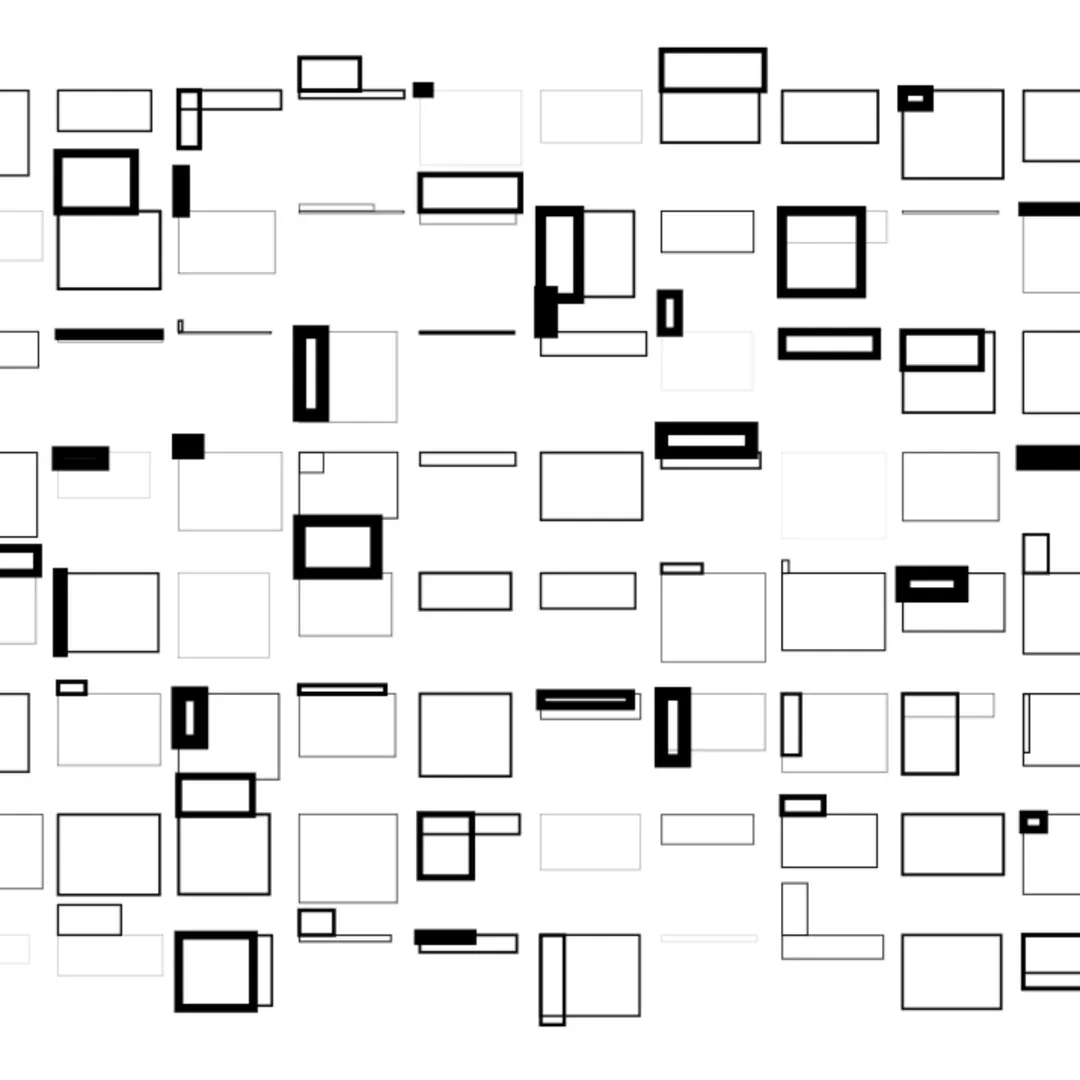
A few snapshots of my experiments with the same ideas, playing with shape, position, line width and random values.